Generate code replacements with Joruna
Last update: 2025-08-17
Step 1: Upload Your Source
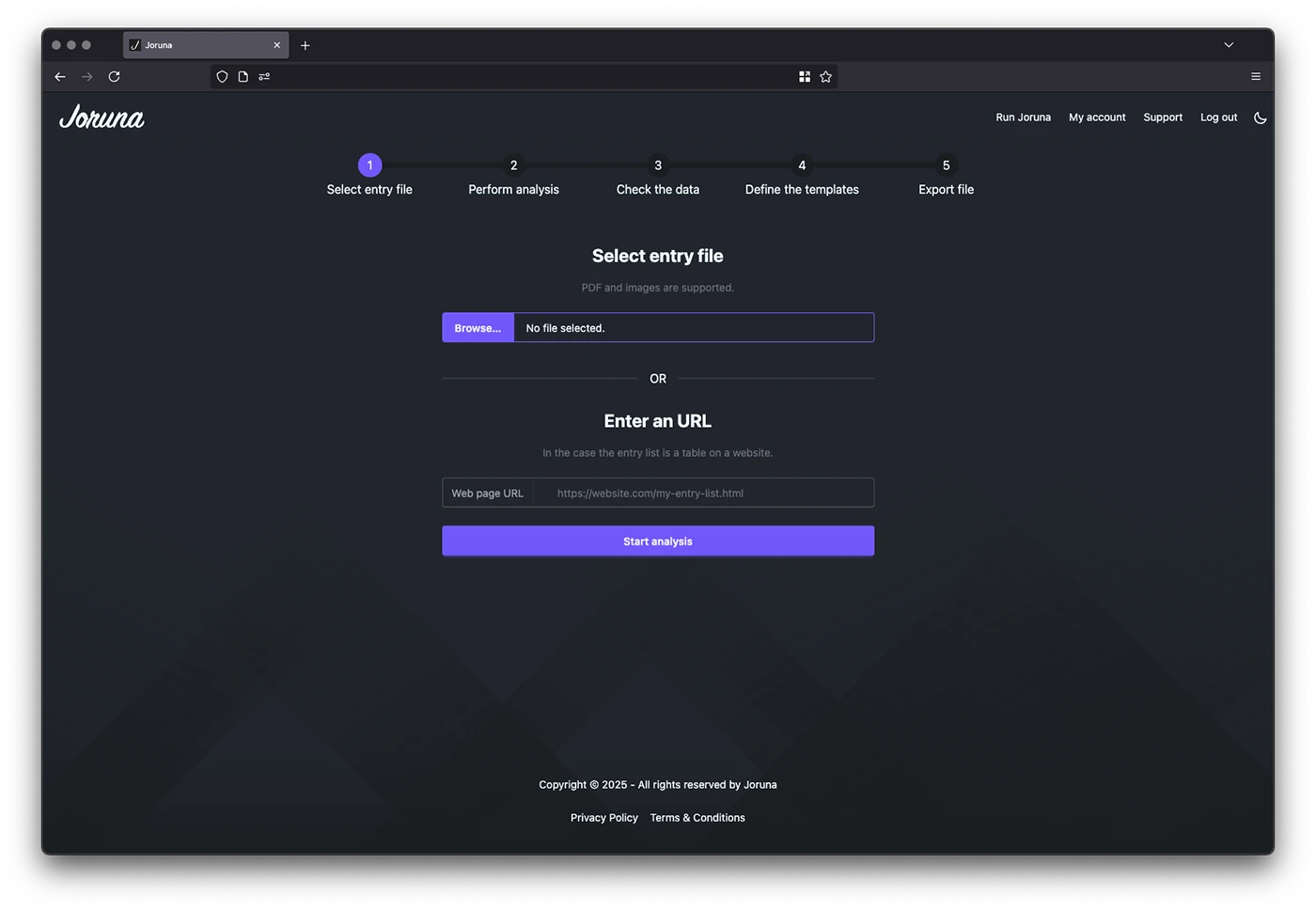
Simply select your PDF, image, or website URL into our intuitive interface. PDF, Images
(JPG, PNG, etc.) and websites are supported. Excel files and CSV to come soon!
Step 2: AI Analysis
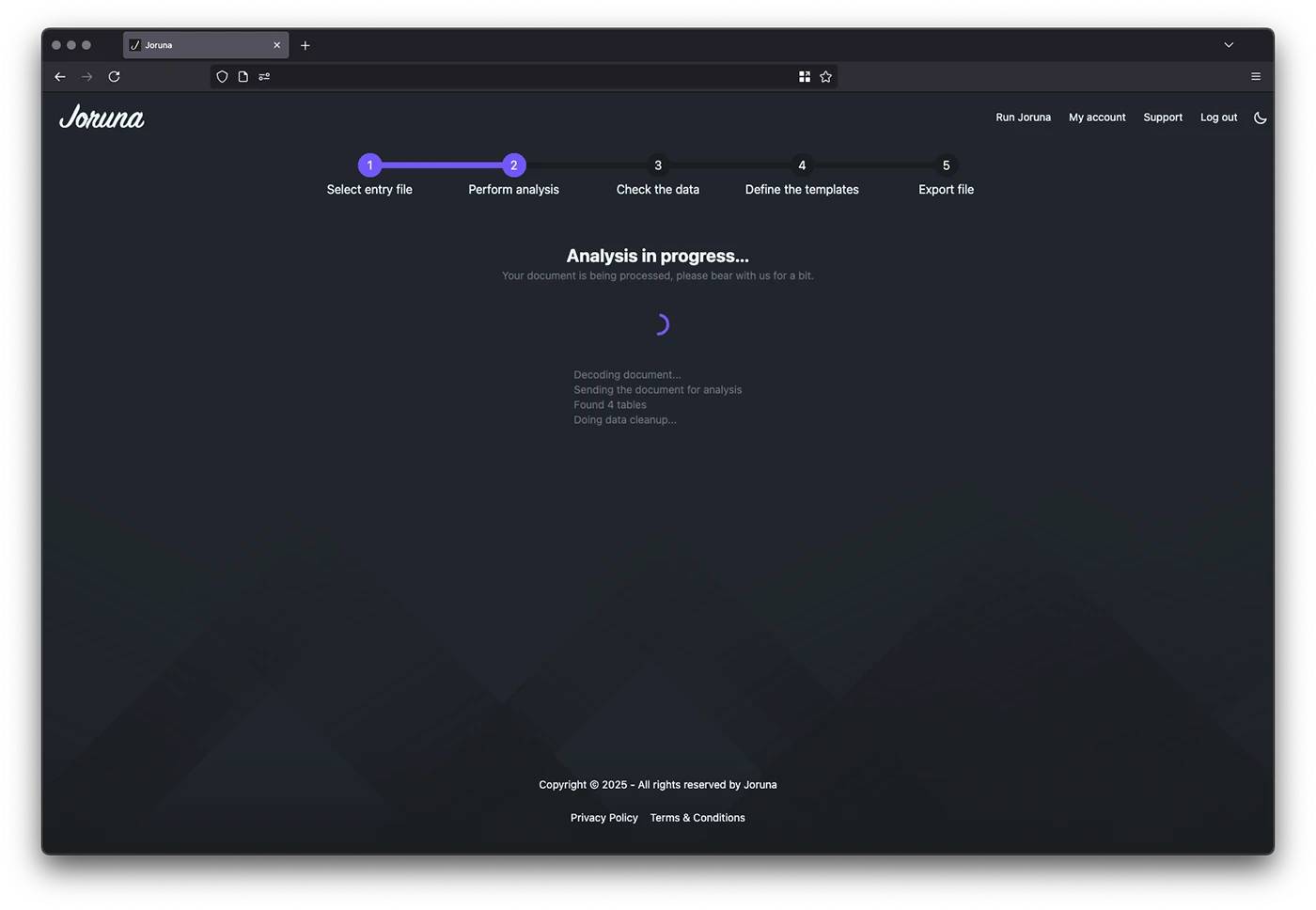
Our advanced AI automatically analyzes your content and identifies key patterns and
structures.
Step 3: Preview Results
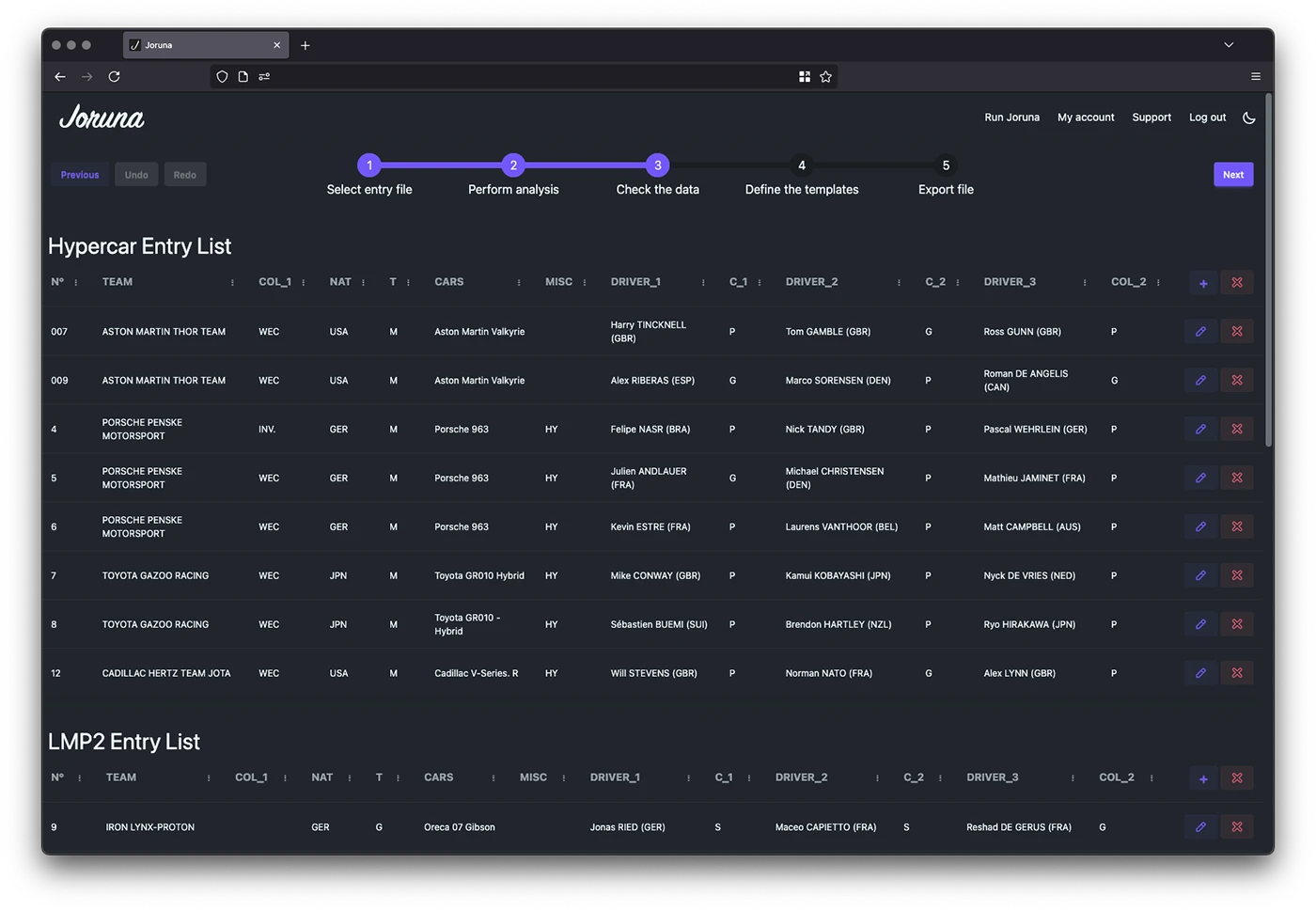
Review the generated code replacements and make any necessary adjustments: remove
unnecessary columns, rows, or tables, merge tables...
Step 4: Customize Results
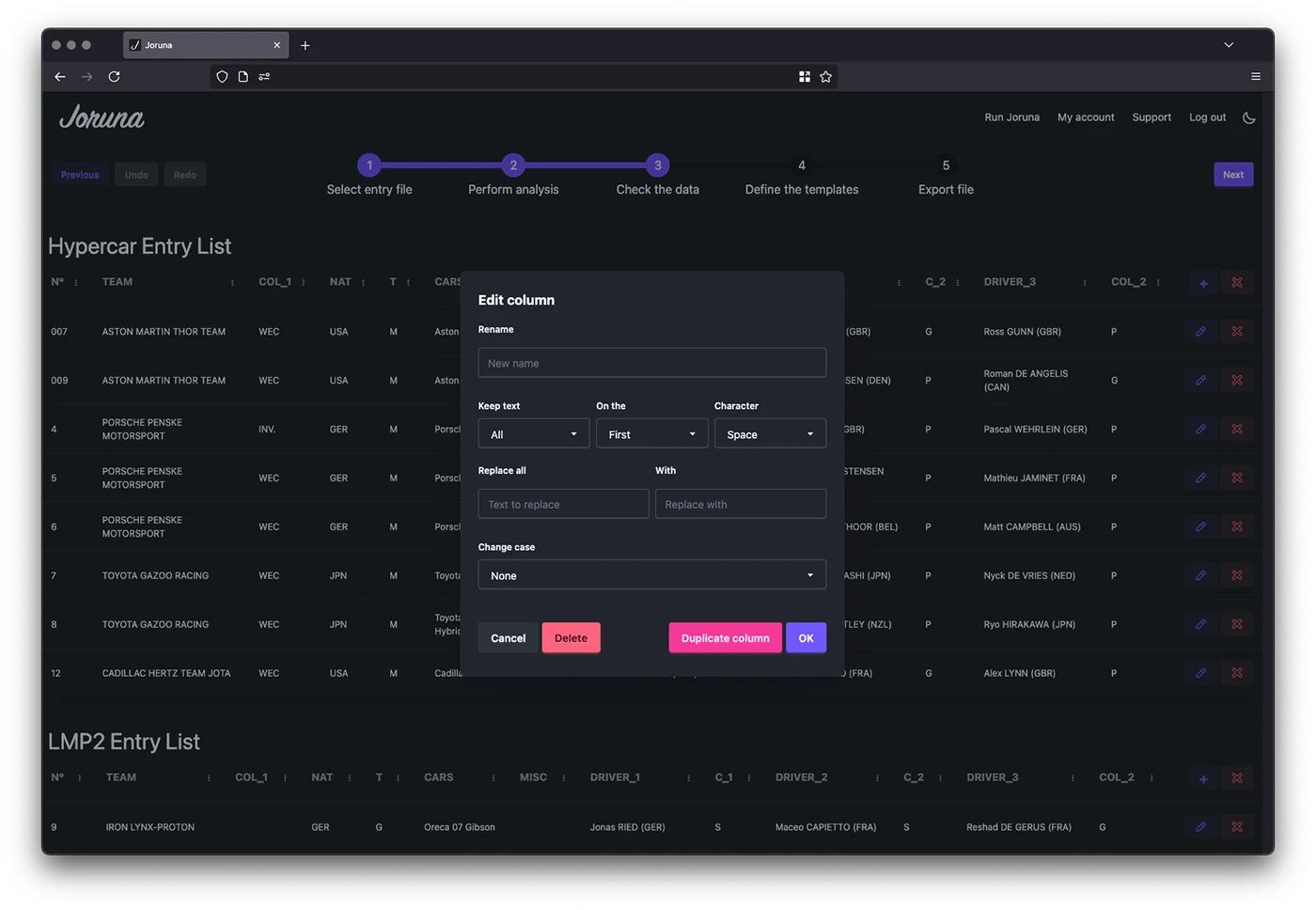
Bulk edit the results per column by clicking the edit icon on the right of the column. From
there you can:
- Change the title of the column
- Keep only part of the content by removing the part before or after a specific character e.g. keep only the part before the first comma
- Replace text in the column
- Change the case of the content
- Make the changes in a new column (Duplicate button) or in the current column
- Remove the current column
Step 5: Customize Output
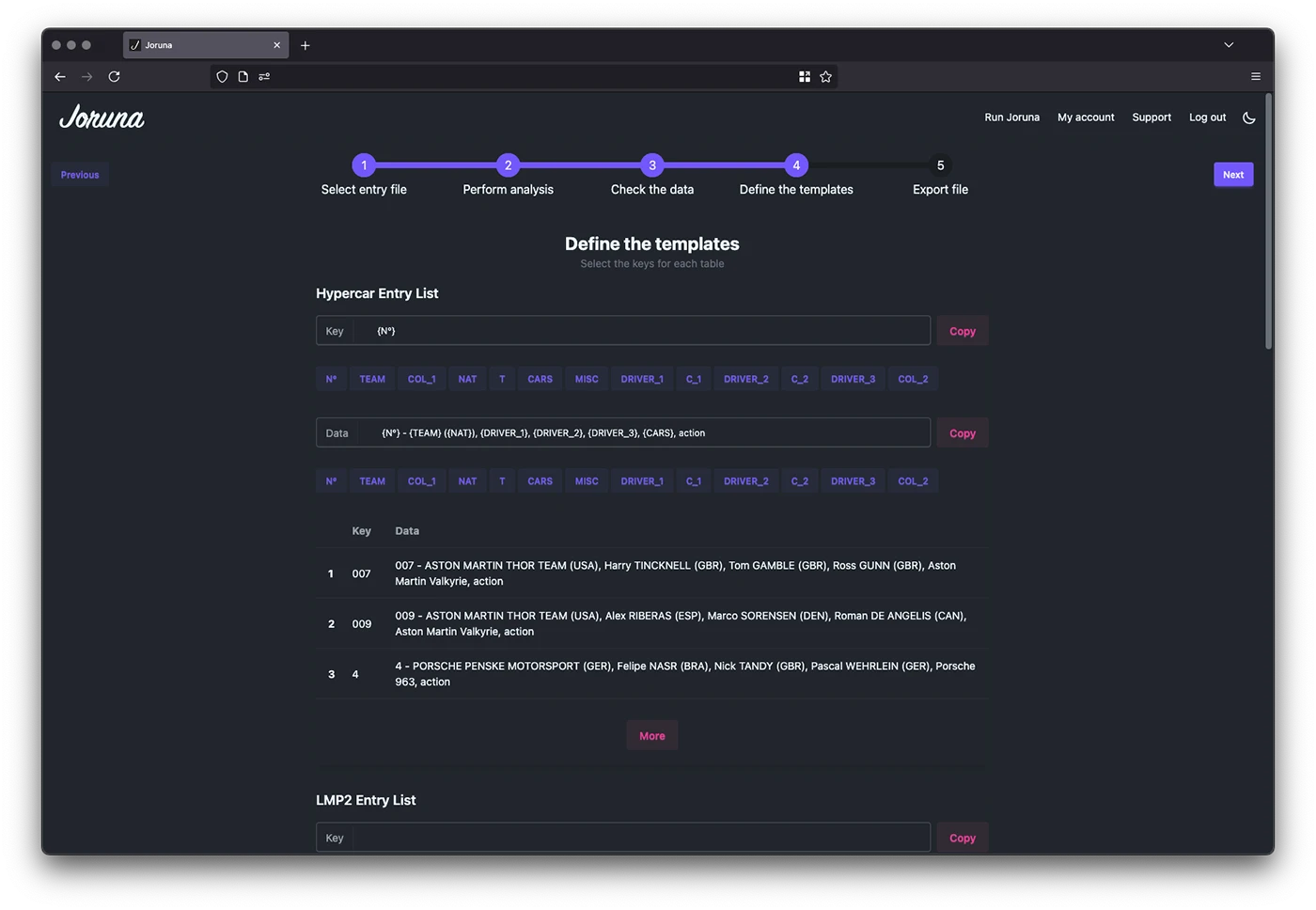
Define the code replacement templates for each table. Click on the buttons representing the
columns to define the template.
Step 6: Download & Use
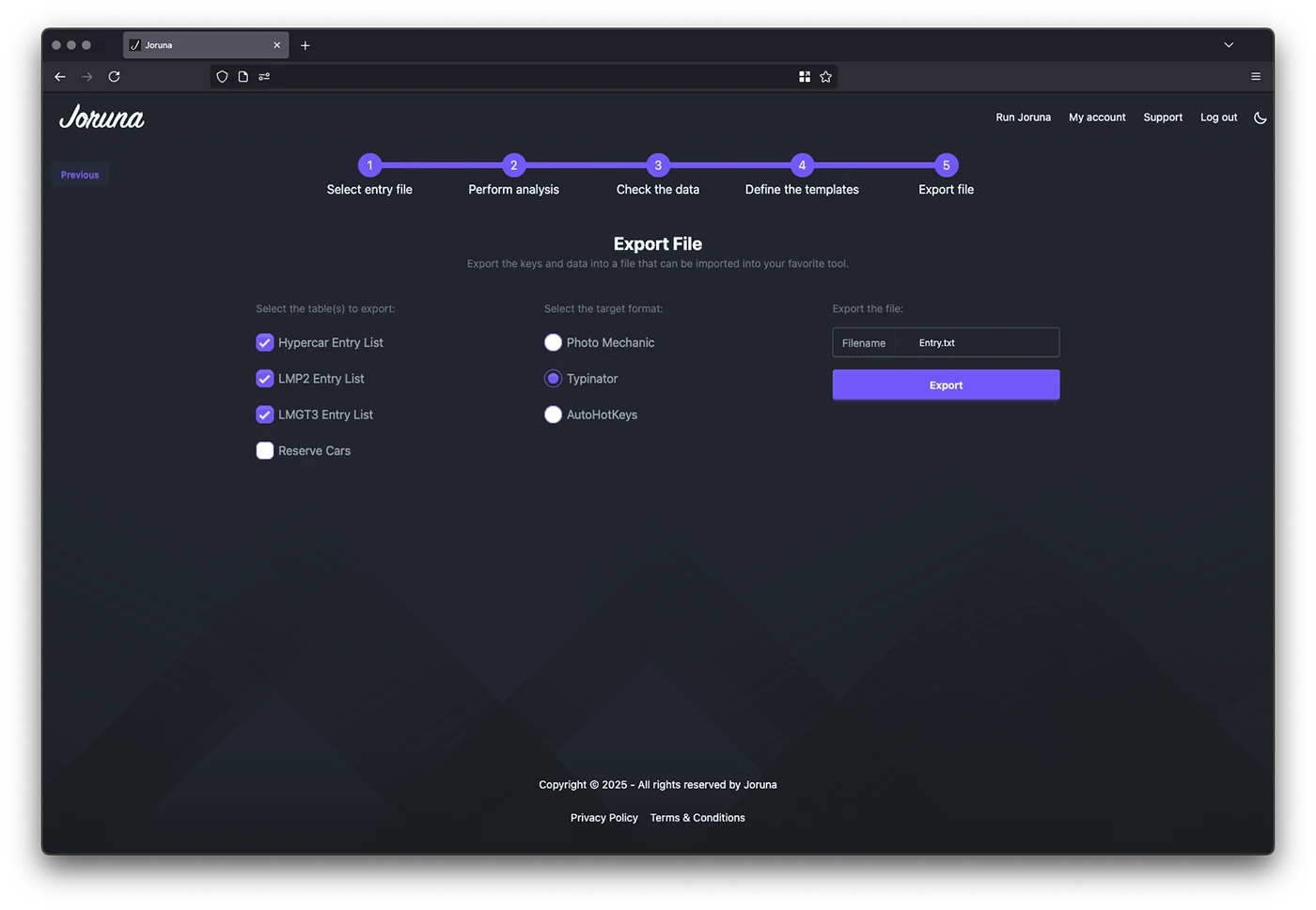
Choose your preferred software format: Photo Mechanic, Typinator, or AutoHotKeys and
download your ready-to-use code replacement files and start working immediately.
Step 7: Import into your software
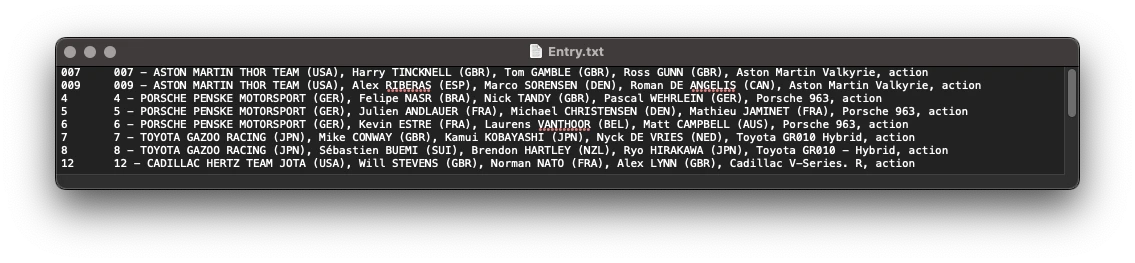
Import the code replacement files into your code replacementsoftware and start working
immediately.